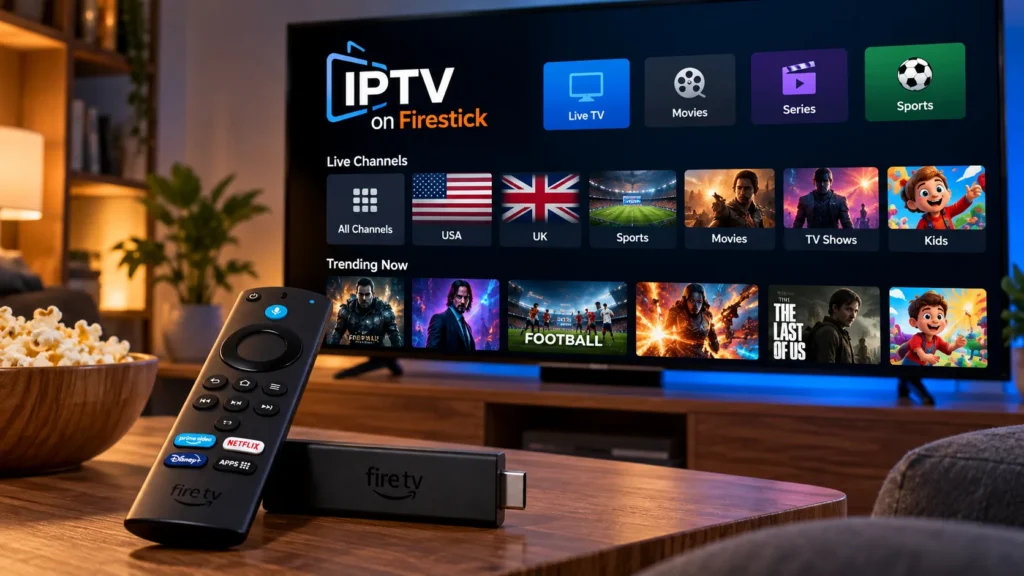
IPTV for Firestick is usually straightforward once you understand the difference between an IPTV service and an IPTV player. The service provides your access details, while the player is the app you use on your Fire TV device.
In this guide, we’ll explain how IPTV works on Firestick, what you need before getting started, how to set it up, and what to check if something is not working as expected.
How IPTV Works on Firestick
Amazon Fire TV devices can run streaming apps directly on your television. On Fire OS devices, the software platform is based on Android, although Amazon uses its own interface, Appstore and Fire TV ecosystem.
With IPTV for Firestick, a player app installed on your device connects to the streaming service using the details provided by your IPTV provider.
The player is only the interface used to organise and play content. Installing an IPTV player by itself does not automatically give you access to channels.
What You Need Before Setting Up IPTV on Firestick
Before you begin, make sure you have:
- A compatible Amazon Fire TV Stick or Fire TV device.
- A stable internet connection.
- An IPTV player compatible with your service.
- Your IPTV login details or playlist URL.
- Your Fire TV remote for completing the setup.
It is also useful to know which Firestick model you have because menus and app compatibility can vary slightly between Fire TV generations.
IPTV Player vs IPTV Service
This is one of the most important things to understand before setting up IPTV for Firestick.
An IPTV player is an application used to display and play your streams. An IPTV service provides the actual access details used inside that player.
Think of it like an email app and an email account. The app lets you access your messages, but it is not the company providing your email account.
The same principle applies to IPTV. Choose a player that supports the type of access information supplied by your service.
How to Set Up IPTV on Firestick
1. Connect and Update Your Firestick
Connect your Firestick to your television and Wi-Fi network. Before installing anything, check for available Fire TV system updates.
Keeping the device updated can help prevent compatibility problems with newer streaming apps.
2. Choose a Compatible IPTV Player
Choose a player that supports Fire TV and the login method provided by your IPTV service.
Whenever possible, install apps from trusted stores or from the official developer source. Avoid downloading unknown APK files from random websites.
3. Install the Player
If the app is available in the Amazon Appstore, install it directly from your Firestick.
Some apps may require manual installation. Amazon provides official developer documentation for installing and testing apps on Fire TV, including ADB-based installation methods.
4. Enter Your IPTV Details
Open the player and enter the information supplied by your IPTV service. Depending on the player, this may include:
- A playlist URL.
- A username and password.
- A server address.
Enter the information carefully. A single incorrect character can prevent the player from connecting.
5. Let the Player Load Your Content
After logging in, the player may need some time to load channels, categories and programme-guide data. Avoid repeatedly closing the app during the first synchronisation.
6. Test Several Channels
Test more than one channel or category after the setup is complete. This makes it easier to determine whether a problem is related to one particular stream, the player itself, your internet connection or your IPTV service.
What Are M3U and M3U8 Playlists?
When setting up IPTV for Firestick, you may receive an M3U or M3U8 playlist URL. These playlist formats contain information that tells compatible media players where streams are located. M3U8 playlists are also commonly associated with HTTP Live Streaming.
For most users, there is no need to understand the technical structure of the file. If your service provides a playlist URL, use a player that supports that format and enter the URL exactly as provided.
Never publish your playlist URL, username or password publicly. Treat them like private account credentials.
Common IPTV Problems on Firestick
Login Details Are Not Accepted
Double-check the username, password, playlist URL and server address. Copy-and-paste can sometimes add an unwanted space at the beginning or end of a field.
Channels Are Buffering
Test another channel first. If every stream is slow, restart your Firestick and router and check the network connection.
If only one channel has a problem, the issue may be related to that particular stream rather than your device.
No Channels Appear After Login
Give the player enough time to complete its first synchronisation. If the player includes a refresh or reload option, try it before entering your details again.
The IPTV App Keeps Closing
Restart the Firestick and check for Fire TV and app updates. Low available storage can also affect app performance, especially on older devices.
What to Check Before Choosing IPTV for Firestick
Firestick compatibility is important, but it should not be the only thing you check before choosing a plan. Confirm channel availability, device compatibility and the subscription duration that makes sense for you.
If you are looking for options for viewers in the United States, review our IPTV subscription USA plans, view the current channel list, or compare subscription lengths on our pricing page.
Is IPTV Difficult to Use on Firestick?
For most users, the hardest part is completing the first setup. Once you have installed a compatible player and entered the correct details, normal use is similar to using other streaming apps on a television.
The simplest approach is to use a trusted player, keep Fire TV updated, protect your login information and confirm device compatibility before choosing a longer subscription. If you have a Samsung Smart TV and are deciding whether to use a separate Firestick, see our IPTV Smarters on Samsung TV setup guide to check app availability and compatibility first.
Official Sources & Further Reading
- Amazon Developer — Get Started with Fire TV
- Amazon Developer — Installing and Running Apps on Fire TV
- RFC 8216 — HTTP Live Streaming
For most users, IPTV for Firestick becomes easy to manage once the player is configured correctly and the connection is stable.