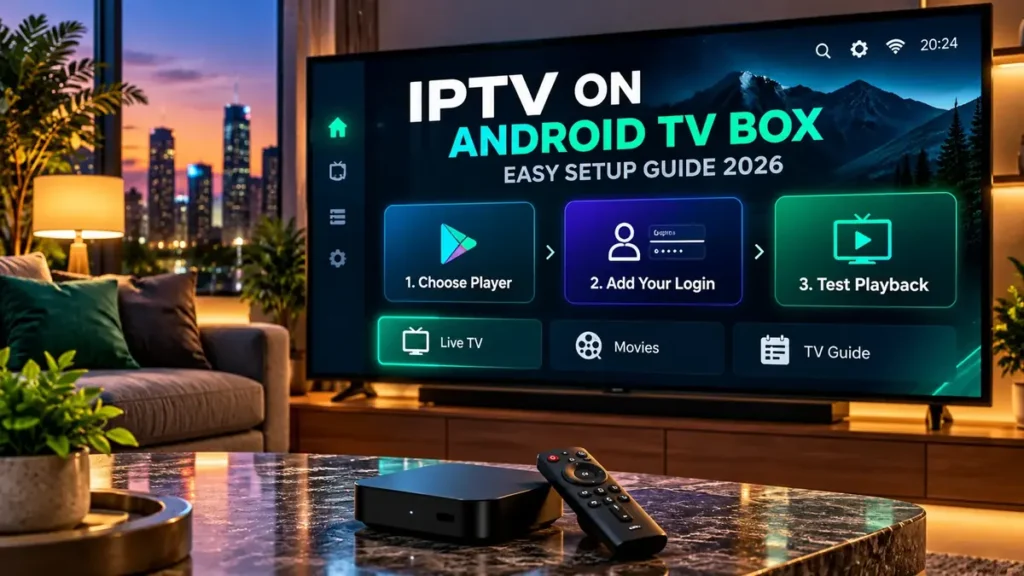
Setting up IPTV on Android TV Box devices is usually straightforward once you have the right player and compatible login details. The main advantage of a TV box is that you can add streaming applications to a television without replacing the TV itself.
However, not all Android TV boxes are identical. Some run an official Android TV or Google TV system, while others use a modified version of Android that may not support the same applications. Knowing which type you own can save you a lot of frustration.
If you’re looking for a subscription for viewers in the United States, explore our IPTV subscription USA options and confirm device compatibility before ordering.
In this guide, we’ll walk through seven practical setup steps, explain the different login methods and cover the most common problems you may encounter along the way.
Can You Use IPTV on Any Android TV Box?
Many Android TV boxes can run compatible streaming applications, but the installation process depends on the operating system and the device itself.
Official Android TV and Google TV devices generally provide access to applications through Google Play. Google TV uses a different interface, but both platforms support compatible applications from the Google Play ecosystem.
Some inexpensive streaming boxes use modified Android software instead. These devices may have a different interface, lack Google Play certification or include applications that aren’t designed for television screens.
Before you install anything, open your device’s settings and look for the model number, operating system version and available app store.
Why Google Play Certification Matters
Google Play Protect certification is worth checking when choosing an Android TV box. Certified devices have passed Google’s Android compatibility testing and are eligible to include licensed Google applications.
On a compatible device, open the Google Play Store, select your profile icon and go to Settings > About. Look for the device certification information.
If your box isn’t certified, some Google applications and services may not work correctly. You may also encounter problems with application updates or compatibility.
Google explains these differences in its official Play Protect certification guide.
An unrecognised device doesn’t automatically mean every streaming application will fail. It does mean you should be more careful about compatibility and software security.
What You Need Before Setting Up IPTV on Android TV Box
Before getting started, make sure you have the following:
- An Android TV box connected to your television.
- A stable internet connection using Wi-Fi or Ethernet.
- Access to a compatible application store.
- An IPTV player that supports your device.
- Valid login details or a playlist from your authorised streaming provider.
- Your TV box remote control.
Your streaming provider may supply a username and password together with a server address. Other services provide an M3U playlist URL or use a dedicated application.
Check which method your service uses before choosing a player. An application that accepts playlists may not necessarily support every username-and-password login method.
How to Set Up IPTV on Android TV Box in 7 Steps
The following process covers the most common setup method on certified Android TV and Google TV devices. If your box uses a modified version of Android, some menus may look different.
Step 1: Connect Your Android TV Box
Start by connecting the TV box to an available HDMI port on your television. Connect the power adapter and select the correct HDMI input using your TV remote.
Follow the initial setup instructions shown on your screen. These usually include choosing your language, connecting to the internet and signing in to your Google account if your device supports Google services.
If your TV box has an Ethernet port and your router is nearby, you can use a wired connection. Otherwise, connect to a reliable Wi-Fi network.
Make sure the home screen loads properly and that you can open the device’s settings before installing additional software.
Step 2: Check for System Updates
Before installing a new streaming player, check whether your Android TV box has any available software updates.
On many Android TV devices, this option is found under Settings > Device Preferences > About or a similarly named system-update menu.
The exact location varies by manufacturer and operating system version. Follow your device’s instructions and install any appropriate updates.
Keeping your box updated can help prevent compatibility problems with newer applications.
Step 3: Choose a Compatible IPTV Player
Next, decide which player you want to use. For IPTV on Android TV Box devices, it’s particularly important to choose an application designed to work with a television remote.
Mobile applications aren’t always convenient on a TV. Some rely heavily on touch controls, which can make navigation difficult when you’re sitting on the sofa with a remote.
Check the app’s description and developer information before installing it.
Look for support for your provider’s login method, a clear television interface and features you’ll actually use, such as favourites or an electronic programme guide.
Step 4: Install the Player from Google Play
On a standard Android TV device, open Apps from the home screen and launch the Google Play Store.
Use the search function to find your preferred player. Open its listing and check that it’s compatible with your device.
Select Install and wait for the download to finish. Once installed, open the application from your app list.
On Google TV, you can usually search for applications directly from the home screen or browse the Apps section.
You can follow Google’s official instructions for installing applications on Android TV and installing applications on Google TV.
Step 5: Add Your IPTV Login Details
When you open the player for the first time, you’ll usually be asked to enter your streaming account information.
The available login options depend on the application.
Username, Password and Server Address
If your provider supplies a username, password and server URL, select the corresponding login method inside your player.
Enter each detail exactly as supplied. Check for missing characters, incorrect symbols or accidental spaces.
Some players ask you to create a name for the account. This is normally just a label to help you recognise the playlist later.
M3U Playlist
If your provider supplies an M3U playlist URL, choose the playlist option in a compatible application.
Enter the complete address carefully and allow the player to retrieve the playlist.
If your application doesn’t offer an M3U option, check whether it supports a different login method before trying to add the playlist.
Keep private playlist URLs and passwords secure. Don’t share them in public screenshots or online discussions.
Step 6: Load Your Channels and TV Guide
After logging in, give the player time to retrieve your available channels and categories.
Depending on the application and streaming service, you may see separate sections for live television, movies, series and favourites.
Some players also support an electronic programme guide, commonly called an EPG.
If your service provides compatible guide information, the player may retrieve it automatically. Other applications require you to enter an XMLTV URL manually.
If the guide doesn’t appear straight away, check the application’s refresh or update option before deleting your account and starting again.
Step 7: Test Your Setup Before You Finish
Once your channels have loaded, choose one and let it play for a few minutes.
Try several channels from different categories. Check picture quality, sound, channel switching and programme-guide information if your player supports it.
It’s also useful to test playback during the hours when you normally watch television. Your experience can vary depending on your home network, device and the source of the stream.
If everything works as expected, you can organise your favourite channels and adjust the player’s interface to suit your preferences.
How to Choose an IPTV Player for Android TV Box
There isn’t one application that suits every user or service. The right choice depends on the features you need and the information supplied by your streaming provider.
Before installing a player, check the following:
- Is it compatible with your Android TV or Google TV version?
- Can it be controlled comfortably with a TV remote?
- Does it support your provider’s login method?
- Can it display programme-guide information?
- Is the app maintained and available from a trustworthy source?
- Are any additional fees explained clearly?
For people who only need to test an authorised network stream, VLC is another option worth knowing about.
VideoLAN’s Android version of VLC supports network streams, including formats such as HLS. However, VLC is a general media player rather than a dedicated IPTV subscription-management application.
You can learn more from the official VLC for Android website.
If your provider requires a particular login system, a compatible dedicated IPTV player may be more convenient than a general media player.
What If Your Android TV Box Doesn’t Have Google Play Store?
Some streaming boxes use modified versions of Android that don’t include the official Google Play Store.
If yours is one of them, start by checking the device manufacturer’s documentation. Find out which applications are officially supported and how they recommend installing them.
Avoid downloading modified applications or unknown APK files from websites that promise free premium channels. They may introduce security risks, and installing an Android application doesn’t guarantee that its interface will work with a television remote.
Also be cautious about tutorials that ask you to disable security protections without explaining the consequences.
If your device is not Play Protect certified, Google notes that some applications and services may not work correctly and that software updates may be unreliable.
If you regularly run into compatibility problems, using a certified Android TV or Google TV device may provide a more predictable application experience.
Common IPTV on Android TV Box Problems and Fixes
Most setup problems become easier to diagnose once you know whether the issue affects the player, your internet connection or an individual stream.
The Player Doesn’t Appear in Google Play
Check the spelling of the application’s name and make sure you’re searching for the correct developer.
If the app still doesn’t appear, it may not support your TV box, Android version or region.
Check for system updates and review the developer’s compatibility information. Don’t assume that downloading an unrelated APK is the right solution.
Your IPTV Login Doesn’t Work
Start by checking the login method. A player expecting an M3U playlist won’t necessarily accept a username and password in the same fields.
Confirm the server address, username, password or playlist URL. Check for missing characters and accidental spaces.
If the information appears correct, contact your provider and ask whether the account is active and the login method is compatible.
Channels Keep Buffering
Test more than one channel before changing your settings.
If every stream buffers, check your internet connection. Restart the TV box and router if necessary, and try using Ethernet when it’s available.
If you’re using Wi-Fi, check the signal strength and consider moving your TV box or router to improve the connection.
If only one channel has a problem, it may be related to that particular stream rather than the player or device.
The Application Freezes or Closes
Restart your TV box and check for application and system updates.
On Android TV, you can normally review installed applications through the device settings. Check whether the application has an available update in Google Play.
If problems continue, check the player’s official troubleshooting information before reinstalling it. Keep your account details somewhere secure in case you need to enter them again.
The TV Guide Is Empty
Give your player enough time to load the programme information, particularly after the initial setup.
If your service provides a separate XMLTV URL, confirm that it has been entered correctly and that the player supports it.
Look for a guide-refresh option in the application. If channels play normally but the guide remains empty, focus on the EPG configuration rather than changing the entire playlist.
The Remote Doesn’t Work Properly
This often happens when an application was designed primarily for smartphones rather than televisions.
Check whether the developer offers a television-compatible version. A TV-focused application should be navigable using the remote’s directional buttons and Select key.
Before trying complicated workarounds, consider choosing a player that is specifically compatible with Android TV.
Android TV Box vs Other IPTV Devices
If you’re still deciding which streaming device to use, it’s worth understanding the practical differences.
Android TV Box vs Firestick
Both can run compatible streaming applications, but they use different software environments and app stores.
Amazon Fire TV devices use Amazon’s platform, while certified Android TV devices use Google’s television platform.
Application availability varies, so the best starting point is checking whether your preferred player supports the device you’re considering.
For Amazon-specific instructions, read our IPTV for Firestick setup guide.
Android TV Box vs Samsung Smart TV
Samsung Smart TVs generally use Samsung’s own television platform rather than Android TV.
That means an application available through Google Play may not have a Samsung TV version.
If you already own a Samsung television, our IPTV Smarters on Samsung TV guide explains the available installation considerations.
Android TV Box vs Roku
Roku uses its own operating system and application store. You can’t install Android APK files directly on a Roku device.
Depending on your Roku model and other equipment, compatible applications, screen mirroring or Apple AirPlay may be available.
See our IPTV for Roku setup guide for those options.
What About Plex?
If you already use Plex Media Server and want to organise compatible live television streams alongside your media library, you may be interested in a more technical configuration.
Our IPTV on Plex guide explains how xTeVe can connect compatible M3U playlists through a virtual tuner.
What to Check Before Buying an IPTV Subscription
Before buying a subscription specifically for an Android TV box, confirm that the service supports your preferred player and login method.
Check the available channels, subscription duration, permitted connections and support options.
A short trial can also be useful for testing the player with your own device and internet connection.
If you’re considering Zelyvon TV, explore our IPTV subscription USA homepage to learn more about the available service and current offers.
You can compare the subscription durations on our pricing page and request the latest channel list before ordering.
Zelyvon TV offers a free 4-hour trial. Contact our team with your Android TV box model and preferred player so you can confirm compatibility before testing the service.
If you’re comparing several providers, read our guide to choosing an IPTV OTT provider for a broader checklist covering compatibility, reliability, pricing and customer support.
Keep Your Android TV Box Secure
Only use applications from trusted sources and streaming services you’re legally authorised to access.
Keep your device updated and avoid entering private account details into applications whose developers you cannot verify.
Don’t share your playlist URL or streaming credentials publicly. Some URLs contain information that can be used to access your account.
Leave Google Play Protect enabled on supported devices and pay attention to security warnings before installing unfamiliar software.
Frequently Asked Questions
Can I Install IPTV on Any Android TV Box?
Many Android TV boxes support compatible streaming applications, but not every box offers the same software or app-store access.
Check whether your device runs certified Android TV, Google TV or another version of Android before choosing a player.
Do I Need Google Play Store to Use IPTV?
Not every streaming application requires Google Play, but it is generally the most straightforward way to find and maintain compatible apps on certified Android TV devices.
If your box doesn’t include Google Play, follow the manufacturer’s supported installation instructions and use trusted application sources.
Can I Use VLC on an Android TV Box?
VLC for Android supports compatible network strea