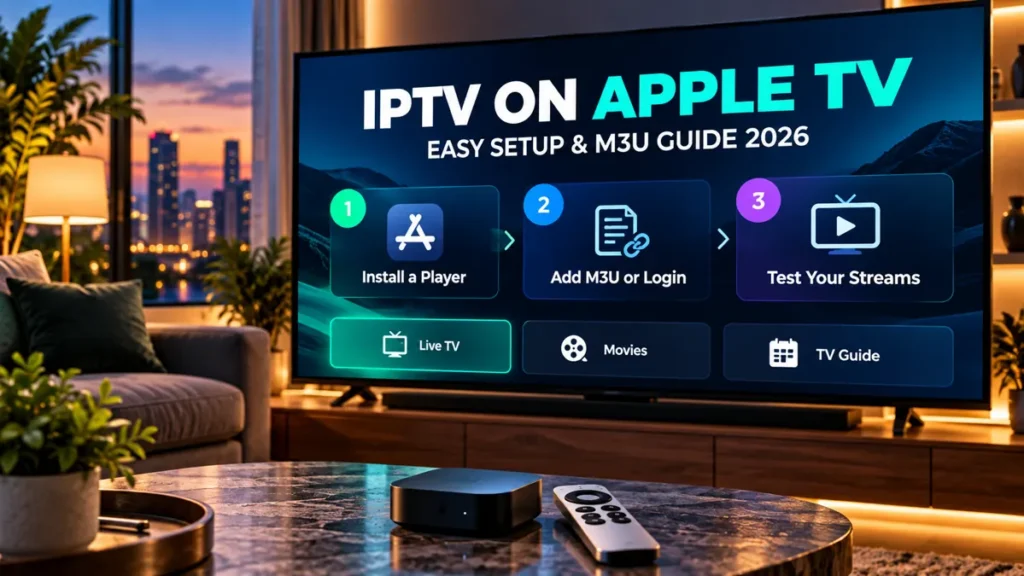
Setting up IPTV on Apple TV is relatively straightforward once you have a compatible player and the right account information. Unlike some streaming devices, Apple TV has its own app ecosystem, so you need an application specifically designed to work with tvOS.
Before choosing a subscription, explore our IPTV subscription USA options and check whether your preferred Apple TV player supports the service’s login method. Doing this before you pay can save you the frustration of discovering that your player and subscription aren’t compatible.
In this guide, we’ll cover the setup process from start to finish, including choosing a player, adding an M3U playlist, loading your channels and fixing common problems. We’ll also explain an alternative method for watching through AirPlay.
Can You Use IPTV on Any Apple TV?
Not every Apple TV model supports the same installation options. Apple TV HD and Apple TV 4K provide access to the App Store, where you can find compatible streaming applications.
Apple TV third generation is different. It doesn’t include the App Store, which means you can’t download new third-party applications in the normal way.
If you’re unsure which model you own, open your device’s settings and check its model information. You can also compare the model number with Apple’s official identification guide.
For an IPTV setup using an application installed directly on the television, an Apple TV HD or Apple TV 4K is generally the appropriate starting point, provided it supports the app’s required tvOS version.
Apple explains which models can download applications in its official Apple TV App Store guide.
What You Need Before Setting Up IPTV on Apple TV
Before beginning the installation, make sure you have the following:
- An Apple TV HD or Apple TV 4K compatible with your chosen application.
- A television with an available HDMI connection.
- A stable internet connection.
- Access to the Apple TV App Store.
- A compatible IPTV player.
- Valid login information or an M3U playlist from your authorised streaming provider.
- Your Apple TV remote.
Some services provide a username, password and server address. Others supply an M3U playlist URL. The player you choose must support the format your service uses.
You don’t need to understand every technical detail before getting started, but you should know which type of login information you’ve received.
How to Set Up IPTV on Apple TV in 7 Easy Steps
The steps below cover the usual setup process for compatible Apple TV applications. Menu names and available features may differ slightly depending on the player you install.
Step 1: Connect and Update Your Apple TV
Start by connecting your Apple TV to your television using an HDMI cable. Connect the power supply and select the corresponding HDMI input on your TV.
Follow the on-screen setup instructions if you’re using the device for the first time.
Make sure your Apple TV is connected to a reliable internet connection. You can use Wi-Fi or Ethernet, depending on your Apple TV model.
Before installing a new application, check for available tvOS updates under Settings > System > Software Updates.
Keeping your Apple TV updated can help prevent application compatibility problems.
Step 2: Choose a Compatible IPTV Player
Next, decide which application you want to use.
For IPTV on Apple TV, it’s important to choose a player that supports the login information supplied by your streaming provider.
Some applications support M3U playlists, while others also accept Xtream-style login details. Certain players provide additional features such as programme guides, favourites and synchronisation across Apple devices.
Check the App Store listing before installing anything. Pay attention to the developer, supported Apple TV models, minimum tvOS version and any in-app purchases.
Step 3: Install the Player from the App Store
Open the App Store on your Apple TV.
Use the search function to find the application you’ve chosen. Open its listing, read the description and check that it supports your device.
Select Get or the displayed purchase price and follow the installation instructions.
Some players are free to download but require payment to unlock additional features. Others are paid applications.
Keep in mind that purchasing an IPTV player doesn’t automatically include television channels or a streaming subscription.
Once the installation is complete, open the application from your Apple TV home screen.
Step 4: Add Your IPTV Login Details
When you launch the player, you’ll normally need to add your content source.
The exact steps depend on the application and the login method supported by your streaming service.
Using an M3U Playlist
If your provider gives you an M3U playlist URL, select the corresponding playlist option in a compatible player.
Enter the complete address carefully. Some applications let you add the playlist using a companion website or another Apple device, which can be easier than typing a long URL with your remote.
Give the application enough time to retrieve the playlist after saving it.
Using a Username and Password
If your provider supplies a username, password and server address, select the compatible login option when your application supports one.
Enter the details exactly as provided. A missing character or an extra space can prevent your account from connecting.
Some players let you assign a name to each account. This is simply a label that helps you recognise different playlists or content sources.
Never publish your playlist URL or login credentials. Treat them as private account information.
Step 5: Load Your Channels
Once you’ve entered the correct information, the player should begin loading the available content.
Depending on the application and your subscription, you may see separate categories for live television, movies, series and favourites.
Large playlists can take a little longer to load, especially during the first synchronisation.
Wait for the process to finish before deciding that something is wrong.
If your channels don’t appear, check whether the player has a refresh or reload option.
Step 6: Configure Your TV Guide
An electronic programme guide, usually called an EPG, displays information about current and upcoming television programmes.
Some IPTV players automatically retrieve programme-guide information from your streaming service. Others let you add a separate XMLTV address.
If your provider has supplied an XMLTV URL, enter it in the player’s guide settings when supported.
Give the application time to update the programme information, then check whether the guide matches the channels you’ve added.
If the channels work but the guide remains empty, the problem may be related to the XMLTV source or channel mapping rather than your streaming account.
Step 7: Test Your IPTV Setup
After completing the setup, open a live channel and let it play for a few minutes.
Test several channels from different categories. Check the picture, sound, channel switching and programme-guide information.
If you regularly watch television during the evening, try testing your setup at that time. Playback performance can depend on your home network, device and streaming source.
Also spend a few minutes exploring the player’s interface. Setting up favourites and learning the remote-control shortcuts can make everyday use much easier.
Which IPTV Players Work on Apple TV?
There are several applications available for compatible Apple TV models. Rather than choosing based only on popularity, check the supported formats and features against your own requirements.
IPTVX
IPTVX is an IPTV player available for Apple TV and other supported Apple devices.
According to its App Store listing, it supports M3U and M3U8 playlists, Xtream API connections, programme-guide information and several library-management features.
It also offers options such as favourites, channel organisation and iCloud synchronisation.
Some features require in-app purchases. Check the current IPTVX App Store listing for compatibility and pricing.
iPlayTV
iPlayTV is another application designed specifically for Apple TV.
Its App Store listing describes support for remote playlists, Xtream-style connections, electronic programme guides and multiple playlists.
It’s a paid application, so check its current minimum tvOS requirement and make sure your device is compatible before purchasing it.
You can review its features on the official iPlayTV App Store page.
VLC for Apple TV
If you prefer a general-purpose media player, VLC is another option worth knowing about.
VLC for Apple TV is free and open source. It can play compatible network streams, including HLS streams, and offers several ways to access media on a local network.
However, VLC isn’t designed to provide all the account-management and programme-guide features available in dedicated IPTV players.
If your streaming service requires a particular login system, make sure VLC supports the method you need before choosing it.
Read more on the official VideoLAN website.
How to Watch IPTV on Apple TV Using AirPlay
If you already use a compatible streaming application on your iPhone or iPad, AirPlay may offer another way to watch without setting up a separate playlist directly on Apple TV.
AirPlay allows supported applications to send video to an Apple TV. You can also mirror your iPhone or iPad screen.
However, not every streaming application allows AirPlay or screen mirroring, so compatibility should be checked before relying on this method.
Step 1: Connect Both Devices
Make sure your Apple TV and iPhone or iPad are connected to the same local network.
Check that AirPlay is enabled on your Apple TV under its AirPlay and Apple Home settings.
Step 2: Open Your Streaming Application
Launch your compatible application on your iPhone or iPad and start playing a stream you’re authorised to watch.
If the application provides an AirPlay button, select it and choose your Apple TV from the list of available devices.
Step 3: Use Screen Mirroring if Appropriate
If direct AirPlay playback isn’t available, you can check whether your application permits screen mirroring.
Open Control Center on your iPhone or iPad, select Screen Mirroring and choose your Apple TV.
Enter the code displayed on your television if prompted.
Once connected, open the application and test playback. Some protected content may block mirroring even when your devices are connected correctly.
Apple provides detailed instructions in its official AirPlay and screen-mirroring guide.
Common IPTV on Apple TV Problems and Fixes
If your setup doesn’t work immediately, identify which part is causing the issue before reinstalling applications or changing your account information.
The IPTV Player Doesn’t Appear in the App Store
First, check which Apple TV model you’re using.
Apple TV third generation doesn’t have the App Store. On Apple TV HD and 4K, confirm that the application supports your model and installed tvOS version.
Application availability can also differ between regions.
If the player isn’t compatible with your device, choose another supported option rather than downloading files from unknown websites.
Your M3U Playlist Won’t Load
Check that the playlist URL has been entered correctly and that your account is active.
Make sure the application actually supports M3U playlists. Some players only accept their own service-specific login system.
If you’re entering the playlist using your remote, pay particular attention to long addresses and special characters.
Contact your streaming provider if the URL appears correct but the playlist still fails to load.
Channels Are Buffering
Test several channels before deciding that your player is responsible.
If every stream buffers, check your internet connection and restart your Apple TV and router if necessary.
A wired connection can also be worth testing on supported Apple TV models.
If only one channel has a problem, the issue may be specific to that stream rather than your television or application.
The Application Freezes or Closes
Check for application and tvOS updates first.
If an application becomes unresponsive, you can force it to close using the Apple TV app switcher and then open it again.
On compatible Apple TV remotes, quickly press the TV button twice to open the app switcher, select the application and swipe up to close it.
If the problem continues, consult the developer’s support information before reinstalling the application.
The Programme Guide Is Missing
Give the player enough time to finish its initial synchronisation.
If the application supports manual XMLTV configuration, confirm that the correct guide URL has been entered.
When channels play but programme information doesn’t appear, check the guide settings and available channel mappings.
AirPlay Isn’t Working
Make sure both devices are connected to the appropriate network and that AirPlay is enabled on Apple TV.
Check whether the streaming application supports AirPlay or screen mirroring.
If the connection works with other applications but not your preferred streaming player, the issue may be related to that particular application’s restrictions.
Apple TV vs Other IPTV Streaming Devices
Apple TV is one option among several streaming platforms, and the most practical choice often depends on the equipment you already own.
Apple TV vs Firestick
Amazon Fire TV uses a different application ecosystem from Apple TV.
If your preferred IPTV player is only available on one platform, that can be an important factor when choosing a streaming device.
For installation instructions on Amazon devices, read our IPTV for Firestick setup guide.
Apple TV vs Android TV Box
Certified Android TV and Google TV devices use Google’s television application ecosystem, while Apple TV uses tvOS.
Both platforms offer compatible streaming applications, but app availability and supported login formats can differ.
Our IPTV on Android TV Box guide covers installation, compatibility and common setup problems on Google’s television platform.
Apple TV vs Roku
Roku uses its own operating system and Streaming Store.
Depending on your Roku model, you may be able to use a compatible native app or share supported content from another device.
See our IPTV for Roku guide for more details.
What About Plex?
If you already maintain a media server and want to organise compatible live streams alongside your personal media, you may be interested in Plex.
It’s a more technical approach than installing an IPTV player directly on Apple TV.
Our IPTV on Plex guide explains how xTeVe can work with compatible M3U playlists and a virtual TV tuner.
What to Check Before Choosing an IPTV Subscription for Apple TV
Before purchasing a subscription, confirm that your preferred Apple TV application supports the login method provided by the service.
Check the available channels, connection limits, subscription duration and whether programme-guide information is included.
If you’re still comparing services, our guide to choosing an IPTV OTT provider explains what to look for beyond the advertised price.
For viewers in the United States, explore our Zelyvon TV IPTV subscription USA options and ask our team about Apple TV compatibility before placing an order.
You can compare subscription durations on our pricing page and request the latest channel list to check whether your preferred programmes are available.
Zelyvon TV offers a free 4-hour trial. Tell our team which Apple TV model and player you intend to use so you can confirm compatibility before requesting the trial.
Keep Your Streaming Setup Secure
Only use streaming services and content that you’re legally authorised to access.
Keep private M3U playlist URLs, account passwords and other login details out of public screenshots and online discussions.
Install applications from trusted sources, review the developer information and check subscription terms before making in-app purchases.
Remember that using a media player or AirPlay doesn’t change the copyright status of the content you’re watching.
Frequently Asked Questions
Can I Install IPTV on Apple TV Third Generation?
Apple TV third generation doesn’t provide the App Store, so you can’t install new third-party IPTV applications directly on that model.
Apple TV HD and Apple TV 4K support App Store downloads, subject to each application’s compatibility requirements.
Do I Need an M3U Playlist for Apple TV?
Only if your chosen player and streaming service use that format.
Some applications also support username-and-password login systems, while others have their own activation methods.
Can I Use IPTVX on Apple TV?
IPTVX has an Apple TV version and supports several playlist and login formats, according to its App Store listing.
Check the current minimum tvOS requirement and