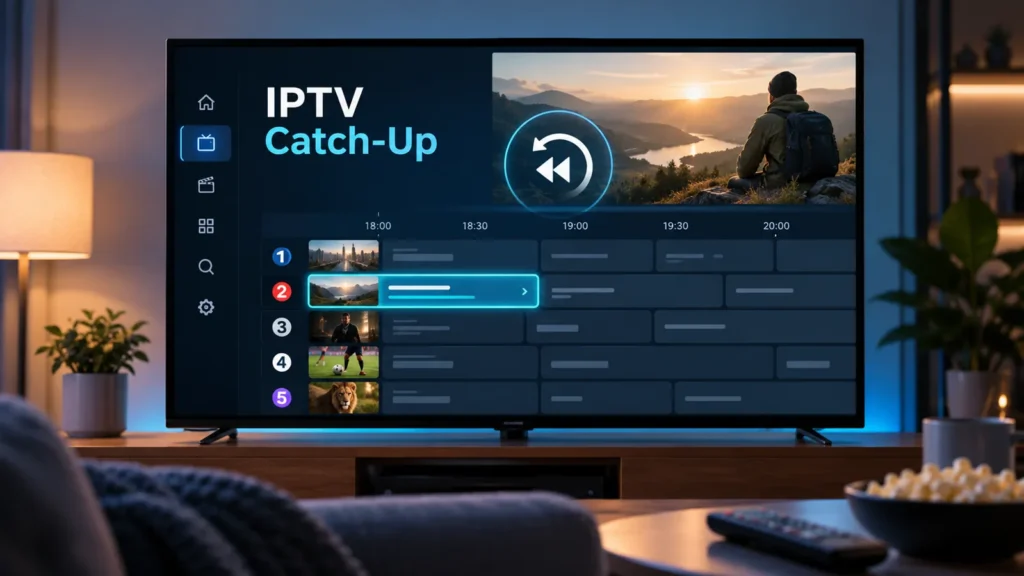
You sit down to watch a show, open your TV guide, and realize it ended an hour ago. With a regular live stream, you’ve missed it. With IPTV with catch-up, you may be able to select the earlier program and play it from the beginning—without having recorded it yourself.
That sounds simple, but there’s an important catch: not every channel, IPTV service, or player supports it. If you’re comparing IPTV subscription options for viewers in the USA, check catch-up availability for the specific channels you care about before choosing a plan. A long channel list won’t tell you whether yesterday’s show is available to replay.
The short version: catch-up depends on three things working together: a provider that stores an eligible broadcast, a player that understands its archive, and a guide that points you to the right program. Your TV alone cannot add missing replay content.
What Is IPTV Catch-Up?
IPTV with catch-up lets you watch eligible programs after their original live broadcast. Instead of scheduling a recording in advance, you open a past entry in the TV guide and play an archived stream, provided your service makes one available.
Picture this: a game aired at 7 p.m., but you didn’t get home until 10. If the event is eligible for catch-up on that channel and is still inside its replay window, you can open the guide, move back to the game, and look for a replay or play-from-start option.
The replay window varies. Some services may retain eligible programs for a day; others may offer several days. Availability can differ even between channels on the same subscription. And a program shown in the guide isn’t necessarily available to replay.
How Does IPTV With Catch-Up Work?
Three pieces need to line up: your service must offer an authorized archive of the program, your player must support the service’s catch-up method, and your TV guide needs enough information to identify the program you want.
1. Your service supplies the replay stream
Catch-up isn’t something an app can create from an ordinary live channel. The content source must make an archived version available and allow your account to access it. If the source doesn’t supply an archive for a particular channel, switching players won’t magically add one.
2. The TV guide helps you find it
The electronic program guide (EPG) shows what aired and when. On a compatible setup, you can browse backward through its listings and choose a past program. The guide is the map, not the recording: seeing yesterday’s schedule doesn’t guarantee that yesterday’s video has been saved.
3. Your player requests the right part of the archive
When you select a program, a compatible player uses the time, channel, and catch-up information supplied by the service to request the appropriate stream. Different services and players handle this differently, which is why one app may display a replay button while another shows only live TV.
For a technical example, Kodi’s IPTV Simple client documentation explains its catch-up settings, supported playlist tags, and how archive playback depends on the provider.
Catch-Up vs. DVR vs. Timeshift: What’s the Difference?
These features are easy to confuse. When comparing IPTV with catch-up, DVR, and timeshift, the key difference is where the video comes from and when it becomes available.
| Feature | What it does | What to check |
|---|---|---|
| Catch-up TV | Replays eligible programs from an archive after they aired. | Supported channels, replay window, and compatible player. |
| Start-over TV | Restarts a program that is still airing, when supported. | Whether that specific live channel has a restart option. |
| DVR | Records broadcasts for you to watch later. | Recording hardware or service, storage, and recording permissions. |
| Timeshift | Lets you pause or rewind part of an ongoing stream, when supported. | Player support and the available rewind or buffer window. |
| Video on demand | Lets you choose titles from a separate catalog. | Catalog availability and viewing rights. |
Start-over and catch-up sometimes appear in the same app, but they are not interchangeable: one restarts a current program; the other lets you revisit a past one. For example, recording live broadcasts with Plex Live TV & DVR requires its supported tuner-and-antenna setup and a Plex Pass for recording. That’s different from an IPTV provider making past streams available through catch-up. If you’re curious about how IPTV sources can be organized alongside your media library, our IPTV on Plex guide explains the separate setup involved.
How to Watch IPTV With Catch-Up
If you’re trying IPTV with catch-up for the first time, menu names vary by app. Think of these as the steps to look for rather than an exact set of buttons for every TV.
- Confirm the feature first. Ask your provider whether catch-up is included, which channels support it, and how far back you can replay programs. If possible, ask about the particular show or event you want to watch.
- Open a compatible IPTV player. Use an app supported by your device and the login method supplied by your service. A working live stream alone doesn’t prove that catch-up will work.
- Make sure the program guide has loaded. Some players download the EPG when you sign in; others need a separate guide URL or a manual refresh.
- Go back in the guide. Choose a channel and move to an earlier date or time. Look for a replay symbol, catch-up label, or an option such as Play program.
- Start with a recently finished program. That’s an easier first test than searching several days back. Give the stream a moment to load and check whether seeking works.
If you’re setting up IPTV for the first time, our beginner’s guide to using IPTV walks through choosing a device, installing a player, and entering your login details before you get to features such as catch-up.
Does Catch-Up Work on Firestick, Samsung TV, and Other Devices?
The TV itself isn’t usually the deciding factor. What matters is the player you can install on it and whether that player works with your service’s catch-up system.
Fire TV and Android TV: These devices can run various TV-friendly players, but catch-up features differ between apps and versions. Confirm support before installing. If you’re still getting your Fire TV set up, see our Firestick setup guide.
Samsung Smart TV: App availability depends on model, software, and region. Even when a player is available, its Samsung version may not have the same features as its Android version. Our Samsung TV installation guide explains what to check before installing IPTV Smarters.
Computers and other platforms: Some desktop and television players support IPTV with catch-up; others are designed mainly for live streams or ordinary playlists. Read the developer’s documentation instead of assuming that every app with an EPG also supports replay.
Why Isn’t My IPTV Catch-Up Working?
If live television works but replay doesn’t, try to narrow the problem down before deleting your playlist or reinstalling the app.
The replay button is missing
First, check whether the channel and program are actually included in your service’s catch-up offering. Next, check the player: it may need catch-up enabled in its settings, or it may not support your service’s archive format. If another channel has a replay button, that difference can help you identify the issue.
The guide shows the program, but it won’t play
An EPG can display a past listing even when there’s no playable archive behind it. Try a different recent program from a channel your provider confirms is supported. If those fail too, ask your provider to check archive availability or account permissions.
Replay starts at the wrong time
Check the time zone on your device and the time displayed by the guide. Incorrect guide data or a mismatch between guide and stream timestamps can send you to the wrong part of a recording. Some players offer a guide offset or catch-up correction setting, but don’t change it blindly; confirm the correct time with your provider first.
Catch-up works on one device, not another
Look at the app rather than the screen. Two devices may run different versions of a player or use different playback engines. Compare their catch-up settings and supported formats, then check the developer’s instructions for each platform.
A program has disappeared from the archive
It may have reached the end of the replay window, or replay rights may differ for that program. A seven-day guide doesn’t automatically mean seven days of playable catch-up on every channel.
What to Ask Before Choosing an IPTV Service With Catch-Up
If replay is one of the reasons you’re considering a subscription, don’t settle for a general promise that the feature is included. A quick, channel-specific test can tell you much more than a feature badge on a sales page. Ask a few specific questions:
- Which channels actually support catch-up, particularly the ones I watch most?
- How many hours or days does the archive remain available?
- Is catch-up available in my region and on my preferred device?
- Which player and login method should I use?
- Can I test a real replay stream before committing to a longer plan?
When testing, choose one recently finished program on a channel you actually watch. Check that it starts at the correct time, plays for several minutes and lets you move around the timeline if that matters to you. If you mainly want to replay sports, confirm whether those particular events are eligible; an archive label does not guarantee access to every game. It’s also worth checking whether the service has the rights to distribute the channels and replay content you want. Our guide to choosing an IPTV provider covers other practical checks, including device compatibility, support, and subscription terms.
Is IPTV Catch-Up Worth Having?
If your schedule rarely matches the TV schedule, IPTV with catch-up can be genuinely useful. There’s no need to remember to record every program, and you can often browse past shows through a familiar TV guide. But it matters much less if the channels you watch don’t offer replay, or if your preferred app can’t access it.
Before choosing IPTV with catch-up, check the channels first, then the replay window, then the player. If you’re comparing services in the United States, you can explore Zelyvon TV’s IPTV plans and ask the team which features and devices are currently supported. Zelyvon TV currently offers a free four-hour trial, which can be useful for checking basic compatibility; confirm catch-up availability for your preferred channels with the team before counting on it.
Frequently Asked Questions
Can I watch every channel from yesterday?
No. You can only replay programs that your service makes available and your player can access. Some channels or individual events may have no catch-up archive at all.
Do I need an EPG for catch-up?
Many players use the EPG to let you choose a past show, but the exact setup depends on the app and service. A guide on its own doesn’t create playable recordings.
Is catch-up the same as recording a program?
No. With catch-up, you’re accessing an archive supplied by the content service. With DVR, you’re arranging a recording through supported software, hardware, or a recording service.
Why can I replay one show but not another on the same channel?
Programs can have different replay rights or retention periods. Check the service’s channel-specific availability and ask support if a program you expected to find is missing.
Does an IPTV player include catch-up for free?
IPTV with catch-up doesn’t come included just because you installed a player. Your service needs to provide the replay streams, and your player needs to support them. Some apps also have their own payment or feature restrictions.