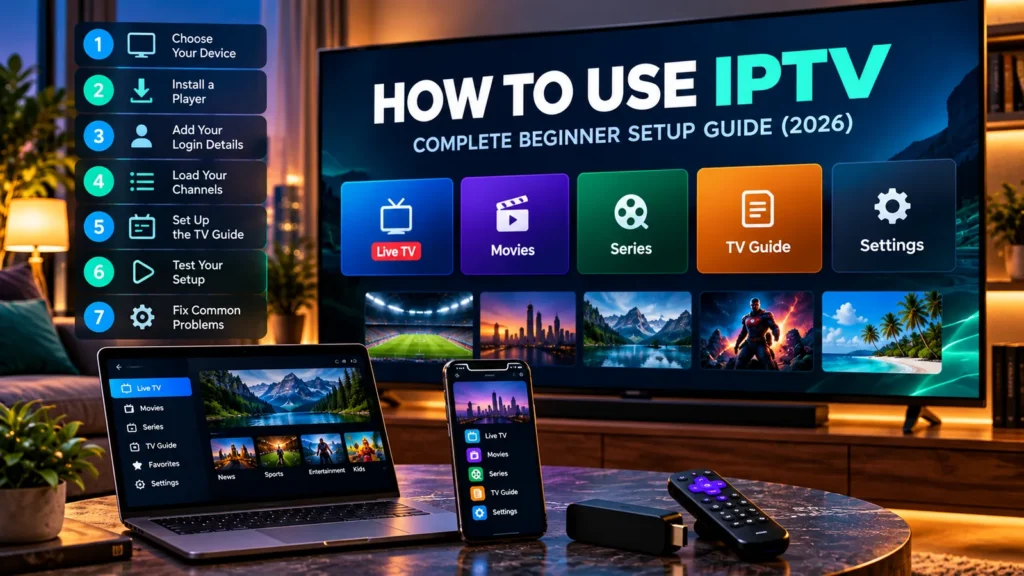
If you’re wondering how to use IPTV, the setup is usually simpler than it first appears. The main thing is understanding what your streaming service provides, which player works on your device and how to connect the two.
Before choosing a subscription, explore our IPTV subscription USA options and check whether your preferred television or streaming device is compatible. Getting those details right from the beginning can save you time later.
In this beginner’s guide, we’ll walk through seven practical steps, from choosing a device and installing a player to adding your login details, loading channels and dealing with common playback problems. You don’t need to be particularly technical, but you should check the instructions for the specific app and device you’re using.
What Is IPTV and How Does It Work?
IPTV stands for Internet Protocol Television. Rather than receiving television through a traditional cable or satellite connection, IPTV delivers video over an internet connection.
The term covers different kinds of services, including legitimate live television platforms, on-demand applications and systems that use a separate IPTV player.
For the type of setup covered in this guide, there are two important parts: the IPTV service and the IPTV player.
The service supplies your authorised access to content, along with the account information needed to connect. The player is the application that organises and displays the channels or streams supported by that service.
Installing a player doesn’t automatically provide channels. You still need access to a compatible content source.
What You Need Before You Start
Before learning how to use IPTV on your particular device, make sure you have the following:
- A compatible Smart TV, streaming stick, smartphone, tablet or computer.
- A stable internet connection.
- An IPTV player compatible with your device and service.
- Valid account details or a playlist supplied by your authorised streaming provider.
- Enough time to install the application and test a few channels.
Your provider may give you a username, password and server address. Some services use an M3U playlist URL instead. Others have their own applications and activation methods.
Keep those details private. A playlist link or account password may contain information that allows someone else to access your subscription.
Step 1: Choose the Device You Want to Use
The first decision is where you want to watch. This affects which applications you can install and how you complete the setup.
Smart TVs
A compatible Smart TV can run a streaming application directly, which means you don’t need another device connected to your television.
However, application availability varies between brands. Samsung Smart TVs, for example, use a different platform from most Android TV devices. A player that works on Android may not be available on your Samsung television.
Streaming Sticks
Devices such as Amazon Fire TV Stick and Roku can add streaming features to a compatible television.
They don’t support identical applications, though. Check the app store and supported installation methods before assuming your preferred player will work.
Smartphones and Tablets
Mobile devices can be useful for a first test because entering account information is often easier with an on-screen keyboard.
You can also use a compatible phone to share video with certain televisions or streaming devices, although casting and screen mirroring support varies.
Windows and Mac Computers
Computers offer another option, particularly if you already use VLC or another compatible media player.
A laptop can also help you test a playlist before spending time configuring a television application.
Step 2: Choose a Compatible IPTV Player
Once you’ve selected your device, the next step is choosing the application.
Not every IPTV player supports every login format. Some accept M3U playlists, while others also support username-and-password login through compatible server-based systems.
Look at the player description before installing it. Confirm that it works with your device and supports the access method provided by your service.
It’s also worth checking whether the application supports an electronic programme guide, favourites, subtitles or other features you regularly use.
You don’t need the application with the longest list of features. A straightforward player that works reliably with your device and subscription may be all you need.
Step 3: Install Your IPTV Player
The installation process depends on your device. Use its official app store whenever the application you need is available there.
Installing a Player on Fire TV
On an Amazon Fire TV device, open the main menu and go to Find. Search for your preferred compatible player in the Amazon Appstore.
Select the correct application and choose Get or the relevant download button. Once installed, open it from your applications.
Amazon explains the process in its official Fire TV app installation guide.
For more detailed instructions, see our IPTV for Firestick setup guide.
Installing a Player on Samsung Smart TV
On a compatible Samsung Smart TV, press Home and open Apps. Use the search function to find your chosen player.
Read the application details and check the developer before installing it. If the player you want isn’t available in your television’s app store, confirm your model and the developer’s supported installation methods.
Our IPTV Smarters on Samsung TV guide covers compatibility, installation and common setup issues.
Installing an Application on Roku
Roku has its own Streaming Store, so don’t assume an Android application will work on it.
Search for a compatible Roku app and check whether it accepts the streaming service’s login method. If it doesn’t, screen mirroring or AirPlay may be alternatives on supported devices.
Read our IPTV for Roku guide for the different installation and screen-sharing methods.
Step 4: Add Your IPTV Login Details
After installation, open your player. This is where you’ll enter the information provided by your streaming service.
When learning how to use IPTV for the first time, this is often the step that causes the most confusion because different players use different names for their login options.
Username, Password and Server Address
If your provider supplies a username, password and server address, look for the corresponding login option in your player.
Enter all three details exactly as supplied. Some players also ask you to name the playlist or account. That’s normally just a label to help you recognise it later.
Check the server address carefully. Missing characters, extra spaces or an incorrect prefix can prevent the player from connecting.
M3U Playlist
If your service supplies an M3U playlist URL, choose the playlist option in an application that supports that format.
Enter the complete URL. The player will then attempt to retrieve the channel information from the supplied source.
An M3U playlist is essentially a file or link containing references to media streams. It doesn’t guarantee that every stream will work or that the content is authorised.
What If Your Player Doesn’t Offer the Right Login Method?
Don’t try to force the wrong type of login into the application. Check the developer’s documentation or ask your streaming provider which compatible players and login methods it supports.
Never publish your playlist URL, server address containing credentials or account password when asking for technical help online.
Step 5: Let the Player Load Your Channels
Once you’ve entered your account information, the player may need a little time to download the channel list and organise the available categories.
The initial loading time depends on the application, connection and size of the playlist.
Some players display separate sections for Live TV, Movies and Series. Others have a simpler interface with a channel list and a programme guide.
Start by opening one of the categories and selecting a channel. If nothing appears immediately, give the application time to finish its initial synchronisation.
If the app offers a refresh or reload option, you can try it before deleting your account and starting again.
Step 6: Set Up Your Electronic Programme Guide
An electronic programme guide, usually shortened to EPG, displays channel schedules and information about current or upcoming programmes. A guide alone doesn’t let you replay older shows; our guide to IPTV catch-up explains what else you need.
Not every IPTV player configures the guide in the same way. Some retrieve it automatically from your service, while others require a separate XMLTV URL.
If your provider supplies an EPG address, enter it in the appropriate section of your player when supported.
After the guide updates, check a few channels to see whether the programme information matches what you’re watching.
Missing or incorrect guide information doesn’t always mean the streams themselves are broken. The playlist and EPG may use different channel identifiers, or the guide source may simply be unavailable.
Advanced users who already run a Plex media server can read our IPTV on Plex guide to learn how xTeVe can manage compatible M3U playlists and XMLTV channel mapping.
Step 7: Test Your IPTV Setup
Before you consider the setup finished, spend a few minutes testing it properly.
Start with one channel, let it play and check for buffering, picture problems or unexpected interruptions. Then try a few channels from different categories.
Test the player at a time when you would normally watch television. A short test in the morning may not tell you how your internet connection or content source behaves during a busy evening.
Also check the features that matter to you, whether that’s subtitles, favourites, programme-guide information or switching between channels.
If you’re using a trial, confirm the exact expiry time so you have enough time to evaluate the service.
How to Use IPTV on Different Devices
The seven steps above cover the basic process, but there are a few differences worth understanding on specific platforms.
Firestick and Fire TV
Fire TV is a useful option when your preferred player is compatible with Amazon’s platform. App availability and supported login formats should be checked before subscribing.
If you’re installing an app for the first time, start with the official Appstore. Avoid downloading unknown APK files simply because an unofficial website claims they provide extra channels.
Samsung Smart TV
Samsung users should search their television’s app store for a compatible player and verify the developer. App availability can vary by model and region.
Samsung’s official Smart TV app guide explains the normal installation process.
Roku
Roku users need to check the Streaming Store for a suitable application. If the desired player isn’t supported, compatible Android or Windows screen mirroring and Apple AirPlay are alternatives worth investigating.
Those methods have their own device and network requirements, so verify support rather than assuming every phone or Roku model will work.
Windows Computer
On a Windows computer, a compatible media player such as VLC can open supported network streams.
In VLC, select Media > Open Network Stream, paste the authorised stream URL and select Play.
You can also open a compatible local playlist file. However, VLC isn’t the same as a dedicated IPTV player, and certain service-specific login methods may require another application.
The official VideoLAN documentation explains how to open network streams.
Common IPTV Problems and How to Fix Them
Even after you’ve learned how to use IPTV, occasional problems can happen. The easiest way to troubleshoot is to identify whether the issue affects one stream, your entire playlist or the application itself.
Your Login Details Are Not Accepted
Check the username, password and server address, or the playlist URL if that’s what your player uses.
Make sure you haven’t accidentally added spaces or left out part of the address.
If the information appears correct, ask your provider to confirm that the account is active and that you’re using the supported login method.
Channels Are Buffering
Start by checking whether the problem affects every channel or just one.
If all channels buffer, test your internet connection and restart your router and streaming device if necessary. Where possible, try a wired connection or move closer to your Wi-Fi router.
If only one stream has a problem, the issue may be specific to that content source rather than your device.
The Application Keeps Closing
Restart your device and check for software and application updates.
Make sure your device has enough available storage and isn’t running several demanding applications at the same time.
If the problem continues, consult the player’s official troubleshooting information before reinstalling it. Save your account details first because you may need them again.
Your TV Guide Is Empty
Check whether your player has finished downloading the EPG information.
If your service uses a separate XMLTV URL, confirm that it has been entered correctly. Some players have an option to refresh the programme guide manually.
When channels play normally but guide information is missing, focus on the EPG settings rather than changing the entire playlist.
No Channels Appear After Login
Allow the player to finish loading, then check its refresh option if available.
Confirm that the account information is correct and ask your service provider whether the playlist is active.
If you’ve recently changed devices, also check whether your subscription has any simultaneous-connection restrictions.
What Should You Check Before Choosing an IPTV Subscription?
Knowing how to use IPTV is only part of the process. You should also make sure a prospective service offers the features and compatibility you actually need.
Check the supported devices, login methods, available channels, subscription duration and customer support options before paying.
A short trial is particularly useful for checking how the service performs with your own television, player and internet connection.
Zelyvon TV offers a free 4-hour trial, subject to confirmation with our team. You can explore our IPTV subscription plans and request the latest channel list before ordering.
If you’re comparing several providers and aren’t sure what to look for, read our guide to choosing an IPTV OTT provider.
Keep Your Setup Secure
Use streaming services and content that you’re legally authorised to access. IPTV is a delivery technology; the player itself doesn’t determine whether a stream is licensed.
Protect your login details and avoid sharing private M3U playlists publicly.
Install applications from official stores or verified developer sources whenever possible, and read subscription terms before providing payment information.
Frequently Asked Questions
Is IPTV Difficult for Beginners?
Not necessarily. Once you have a compatible player and the correct account information, the basic process is similar to signing in to another streaming application.
The main challenge is making sure your player, device and service are compatible before you start.
Can I Use IPTV Without a Smart TV?
Yes. Depending on your service and application, you may be able to use a compatible streaming stick, smartphone, tablet or computer.
Check supported devices before purchasing a subscription.
Do I Need an M3U Playlist?
Only if your chosen player and service use that format. Some applications support a username, password and server address, while others have their own activation systems.
Why Does IPTV Work on My Phone but Not My TV?
The two devices may support different applications or stream formats.
Check that your TV player accepts the same login method and that the television has a stable internet connection.
What Is an EPG in IPTV?
EPG stands for Electronic Programme Guide. It shows channel schedules and information about current or upcoming programmes when compatible guide data is available.
Do I Need a VPN to Use IPTV?
A VPN isn’t required simply because you’re using an IPTV player. Whether you use one for privacy or network security is a separate decision.
A VPN doesn’t make unauthorised content legal or guarantee that a streaming service will work correctly.
Can I Use the Same IPTV Subscription on Several Devices?
That depends on your provider’s connection limits and subscription terms. Some services allow multiple simultaneous streams, while others don’t.
Always confirm the number of permitted connections before using the same account on several devices at once.