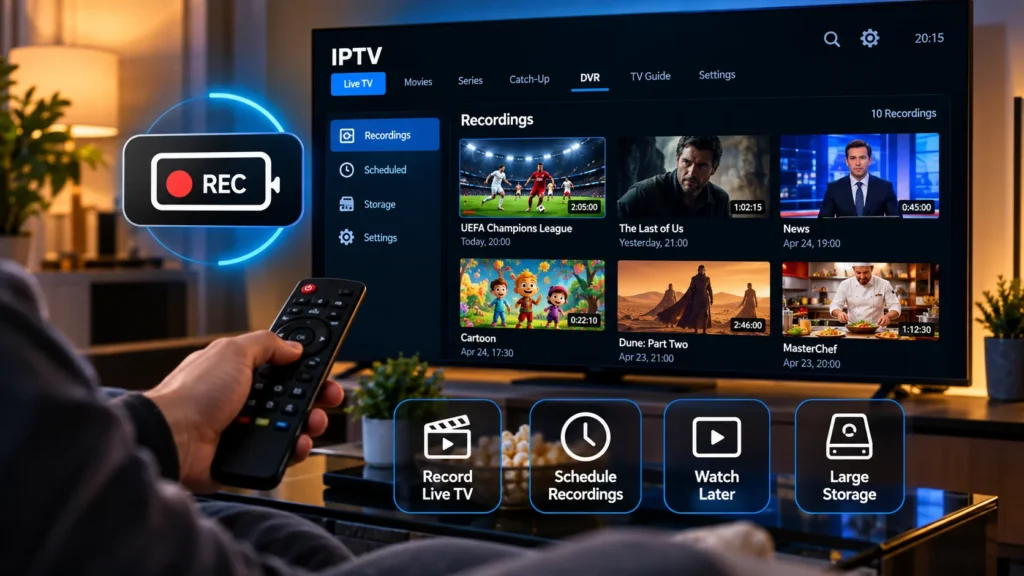
You find a game you want to watch, but it starts while you’re still at work. Your IPTV app has a TV guide, so recording it should be easy—right? Maybe. IPTV with DVR depends on more than having a Record button on the screen.
You need a player or recording system that supports the feature, a stream you’re permitted to record, somewhere to save the video, and enough connection capacity for what you want to do. If you’re comparing IPTV subscription options in the USA, these are useful questions to ask before choosing a plan. A service offering live channels doesn’t automatically offer cloud recordings or extra recording connections.
Below, we’ll walk through the two setups people commonly confuse—recording a permitted IPTV stream with a compatible player and using Plex’s tuner-based DVR—then cover scheduled recordings, storage, failed recordings, and the difference between DVR and catch-up TV.
What Is IPTV With DVR?
DVR stands for digital video recorder. In an IPTV setup, the term usually means saving a live video stream so you can watch it later, rather than depending on a replay archive maintained by a provider. Some players can save recordings to storage connected to your streaming device or accessible over your network. Other systems use dedicated recording hardware or a server.
The distinction matters because there isn’t one DVR feature shared by every IPTV app. The recording controls, supported formats, storage options, and restrictions depend on your player and content source.
For example, the official TiviMate website lists recording as an app feature and makes clear that it doesn’t provide channels or content. Recording a stream in a player and gaining permission to access that stream are separate matters.
IPTV DVR vs. Catch-Up TV: Which One Do You Need?
Imagine you get home late and want to watch the show that ended an hour ago. If your provider has already saved that broadcast, you may be able to open its archive without recording anything yourself. That’s catch-up, not a DVR recording.
| Feature | What happens | What you need |
|---|---|---|
| Local or network DVR | You record an authorized stream to storage for later playback. | A compatible recording app or system, recording permission, enough storage, and a working stream. |
| Catch-up TV | You replay a previous broadcast from an archive the service makes available. | A supported channel, available replay window, and a compatible player. |
| Start-over TV | You restart a program that is still airing, where the service supports it. | A provider and player offering that option for the program. |
| Timeshift | You pause or rewind part of a live stream while watching. | A compatible player or streaming system with an available buffer. |
If you missed a program and didn’t schedule a recording, DVR generally can’t go back in time to recover it. Catch-up might help, but only when the provider retains that program. Our IPTV catch-up guide explains replay windows and how to tell which channels actually support them.
What You Need to Set Up IPTV With DVR
It’s worth checking the basics before spending time configuring a recording folder. A working live stream is a starting point, not proof that the entire DVR setup will work.
1. A Player or System With a Recording Feature
Check the actual app version on your device. The official TiviMate product page lists recording and identifies the app as designed for Android TV devices, rather than a general-purpose phone player. Its features and interface can differ from other IPTV applications, so don’t follow recording instructions written for a completely different player.
2. Content You’re Allowed to Record
Use streams and recording features you’re authorized to access. A player offering a Record button doesn’t settle questions about content rights or your provider’s terms. Some streams or apps also use technical protections that can prevent recording.
3. A Storage Location With Enough Space
Recording creates a video file, so think about where that file will live. A compatible USB drive, device storage, or supported network share may be an option, depending on the player and your hardware. The amount of space you need depends on the actual stream bitrate and recording length.
Before setting up a long recording, save a short test from a stream you’re permitted to record. If your app can’t write to the selected folder, scheduling a longer recording won’t fix the underlying permissions problem.
4. Enough Simultaneous Connections
Recording one stream while watching a different one may use two streams, depending on the app and service. A subscription that allows only one active stream can therefore be a problem even if both channels work perfectly when played individually.
Our IPTV multi connections guide explains the difference between registered devices and simultaneous streams, including what to ask before paying for an extra connection.
How to Record IPTV on Android TV With a Compatible Player
A TV-friendly app with recording support is one way to build a straightforward DVR setup. TiviMate is a documented example, but the same general checks apply to other players that explicitly support recording.
- Install a compatible player from its official source. For TiviMate, use the developer’s website or its linked Google Play listing. Don’t assume that similarly named third-party downloads are the same app.
- Add your authorized playlist or account. Follow the login format provided by your content service, then check that the channel you want plays normally.
- Confirm recording is available in your app version. Look through the app’s channel menu, program guide, and recording settings. Some controls or features may depend on the installed version or app license.
- Choose a supported recording location. Review your app’s storage options and the device’s file-access permissions. Pick a folder that the player can actually write to.
- Make a short test recording. Record a few minutes of a permitted stream, stop the recording, and open the saved file. Check picture, sound, and playback before trying a full-length show.
- Try scheduling a program if your app supports it. Check the start and end times in the guide, confirm your storage location, and review the scheduled recordings screen if one is available.
These are checks to make, not a claim that every Android TV app has the same buttons. Exact menu labels vary. The developer’s official TiviMate site is the place to confirm its currently advertised features and download options.
If you’re setting up the streaming device itself for the first time, follow our Android TV Box setup guide before configuring recordings. Fire TV users can also read our Firestick installation guide, but should check whether the recording app they choose supports their particular Fire TV model and software.
Can You Record IPTV With Plex?
Yes, but it’s important to separate Plex’s officially supported DVR system from third-party IPTV workarounds.
What Plex Officially Supports
According to Plex’s official Live TV & DVR documentation, its supported setup uses Plex Media Server, a compatible TV tuner and antenna, guide data, and an active Plex Pass for recording. Plex lets users map channels, refresh guide data, and configure scheduled recordings once the supported equipment is set up.
It’s a useful option if you want to record over-the-air television available in your area. However, Plex’s free internet-based live channels are a separate product: Plex states that those channels cannot be scheduled for DVR recording. A Plex Pass doesn’t automatically turn every internet stream into a recordable Plex channel.
What About M3U Playlists and xTeVe?
An M3U playlist isn’t the same thing as an officially supported tuner. Some technically inclined users connect compatible playlists through third-party tools that present a virtual tuner, but these arrangements aren’t identical to Plex’s documented antenna-and-tuner workflow. Player versions, source compatibility, and guide mapping can introduce additional problems.
Our separate IPTV on Plex guide explains how xTeVe fits into that kind of setup. If you just want dependable recordings from a supported TV antenna, start with Plex’s official tuner instructions instead.
Why Your IPTV DVR Recording Failed
A failed recording isn’t always a problem with the channel. The timing of the failure usually gives you a clue about where to look.
The Recording Won’t Start
First, test the live stream by itself. If it won’t play, troubleshoot the account, playlist, or content source before changing the recording settings. If it plays normally, check that the recording feature is available in your current app version and that your account permits the intended use.
The App Can’t Save to the Selected Folder
Try a different folder that your player explicitly supports, then review your device’s storage permissions. Network shares add another layer: the device needs a working network connection and permission to write to the shared location.
A short test file is useful here. If the file never appears, don’t assume a larger USB drive will solve it; start with folder access and available storage.
The Recording Stops Before the Show Ends
Check whether the live stream itself drops out. Also inspect available storage space, network stability, and any device power-saving settings that might interrupt the app during a scheduled recording.
On a server-based setup, make sure the server remains running. Plex warns that a sleeping server won’t automatically wake up to start its scheduled recordings.
Watching Another Channel Interrupts the Recording
Test the recording without playing a second channel. If that works, check your plan’s simultaneous-stream allowance and your player’s handling of concurrent streams. Two open apps or two channels on the same television don’t necessarily count as only one stream.
The Wrong Program Was Recorded
Compare the scheduled time in your EPG with the actual broadcast time. An incorrect timezone, outdated guide, or mismatched channel listing can cause a recording to start too early or capture the wrong program. Refresh the guide where your player supports it and verify a few channel listings before rescheduling.
The File Was Saved but Won’t Play
Check the file in a compatible player and confirm whether the recording completed. An unsupported audio or video format, an incomplete file, or a damaged storage device can all produce a file that appears to exist but doesn’t play correctly.
Don’t immediately delete the original recording or share your account details in a public support post. Note the file format and the exact error first.
Is IPTV With DVR Better Than Catch-Up?
They’re useful for different reasons. DVR can be more flexible when you know in advance what you want to save and have the right recording permissions and storage. Catch-up is convenient when the service already provides the program in an archive and you didn’t arrange a recording yourself.
If you routinely record several shows that air at the same time, connection limits and scheduling conflicts may matter more than the app’s interface. If you mostly watch something you missed yesterday, channel-specific catch-up availability might matter more than owning a recording device.
Neither feature is guaranteed by the words “IPTV subscription.” Confirm what the actual service and player support instead of assuming the name of a feature tells you how it works.
What to Ask Before Buying an IPTV Subscription for DVR
If recording is important to your household, ask a few specific questions before choosing a longer plan:
- Is recording allowed for the channels and programs I want to save?
- Which players or recording systems are compatible with the service?
- Will recording and watching different channels at once require extra simultaneous connections?
- Does the provider supply a working program guide, and how are its time and channel mappings handled?
- Can I run a short test recording before committing to a longer subscription?
Those details are often more helpful than a general promise of “DVR support.” You can use our IPTV provider checklist for a wider comparison of compatibility, support, pricing, and trial terms.
If you’re researching plans for a US household, visit the Zelyvon TV homepage to see current subscription durations and contact the team about your preferred device and recording requirements. Confirm the specific features available for your intended setup; this guide doesn’t claim that every Zelyvon TV plan includes DVR.
Frequently Asked Questions
Can I record IPTV without catch-up?
Potentially, yes. If your player or DVR system supports recording and the content source permits it, you can save a live program without relying on a catch-up archive. The two features aren’t interchangeable.
Does TiviMate include TV channels when I pay for its premium features?
No. TiviMate’s official website says it is a media player only. You need to add your own authorized content source, and app features don’t change the terms of that source.
Can I record one IPTV channel and watch another?
That depends on your provider’s simultaneous-stream allowance, the recording app, and how the streams are delivered. Check the limit and test a short recording while the second channel plays.
Can Plex record its free streaming channels?
No. Plex states that its free internet-based live channels are separate from its tuner-based DVR system and cannot be scheduled for DVR recording. Plex DVR recording requires the documented supported setup and Plex Pass.
Do I need an EPG to record IPTV?
An EPG is helpful for choosing and scheduling programs, but whether it’s required depends on your recording app. Some systems also offer manual time-based recording. Check the options in the player you actually use.
Will a DVR fix buffering on live IPTV?
No. Recording depends on a stable source and connection too. If the underlying stream buffers or disconnects, a saved file can have similar problems.
Final Thoughts
IPTV with DVR works best when you build around the viewing habits you actually have. Start by checking permission to record, choose a compatible player or supported DVR system, confirm the storage location, and test one short recording before relying on it for something you don’t want to miss.
And keep the three moving parts separate: the streaming service supplies the content, the player or DVR handles the recording, and your network and storage need to keep everything running. Once you know which part you’re checking, most recording problems become easier to troubleshoot.